dymokomi/luced-3d
A procedural 3D editor with focused modeling, material and scene contexts.
An application written in luce. Latest release 0.11.9.
Install#
luc install dymokomi/luced-3dDocumentation#
luced-3d
A native procedural 3D editor built with luce-ui, luce-3d and luce-gpu. The neutral greys and #E7A03F orange match luced-2d.
luc install dymokomi/luced-3d
# Or, from a development checkout:
luc run --release
Use the current installed Luce toolchain and sibling checkouts. luc build --release creates build/Luced 3D.app on macOS. luc run -- --smoke renders three frames and exits. Runtime code is Luce for the editor and Luce Base for its libraries.
For large files, use the optimized build above. Current timings and the caching design are in PERFORMANCE.md.
Documentation
- DESIGN.md: module boundaries, background computation and result caching, Edit recipes and undo, gizmos, viewport rendering, imports.
- MODELING.md: the node set, Edit tools, attribute contracts and limits.
- CAD_TESSELLATION.md: STEP to polygons: pipeline, invariants, heuristics, tolerances, probing tools and known limitations.
- PERFORMANCE.md: current numbers, what makes them fast, how to measure and open work.
- GROUPS.md: imported STEP hierarchy and Blast.
- OUTLINER.md: output rules, Groups and nested networks.
- NODE-PATHS.md: parameters that name other nodes by path (Import's Object, Render's Camera), the picker, renames and regrouping.
- PROJECTS.md: the project schema and UI persistence.
Related packages: CAD modeling and tessellation live in luce-cad (its tessellation modules hold NURBS evaluation and trim/grid meshing, formerly luce-tesselator), geometry and rendering in luce-3d, and the formats in luce-step, luce-obj, luce-fbx and luce-usd. Each format owns its read and write; the OBJ writer is Obj.write in luce-obj, the USD one Usd.save in luce-usd.
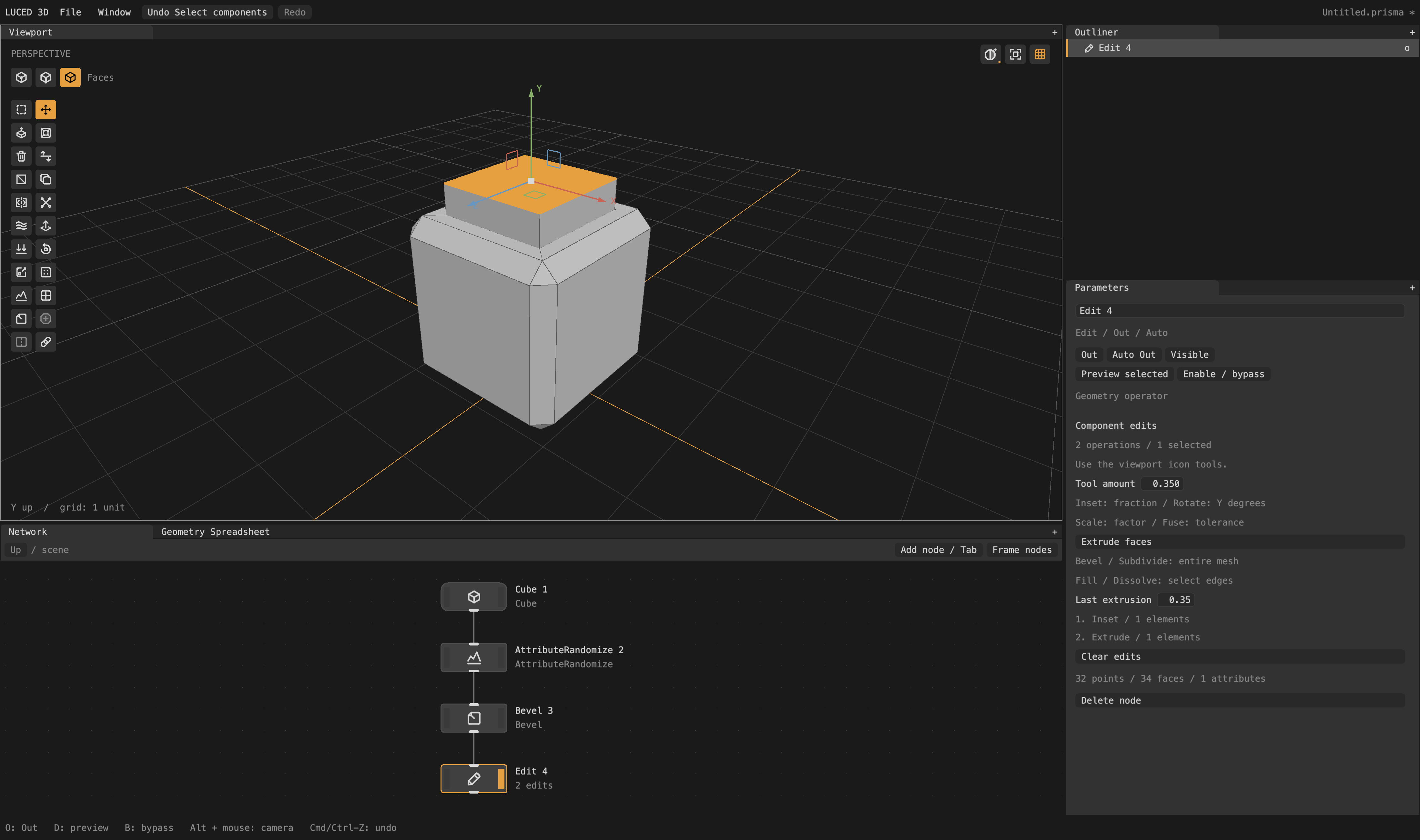
Projects and workspace
File → New/Open/Save/Save As uses .prisma documents through luce-prism. Cmd/Ctrl-N, O, S and Shift-S are supported. Projects retain the authored node DAG, nested Groups, output/enabled/visibility flags, parameters, Edit recipes, camera, and network pan/zoom. External geometry paths are relative to the project when possible; geometry is referenced, not embedded. Save changes before moving files. New/Open/Quit protects unsaved changes with Save/Don't Save/Cancel.
Window size, dock splits, tab order/selection, floating panels, shading, grid and normal display persist in ~/.luced-3d/ui.prisma. Window → Reset Panel Layout restores the default arrangement. Tests and captures do not read or write this user preference file. See project schema and persistence.
Try modeling
- Focus the Network pane. Press Tab, type
Transform, and press Enter. The new node connects to the selected node and becomes the viewport output. - Change its Translation, Rotation or Scale in Parameters, or drag an XYZ handle in the viewport to translate it.
- In Network, Tab, type
Edit Mesh, Enter. The viewport gains the Object/Polygons/Edges/Vertices/Corners level buttons and a tool strip at the left, ending with primitives to create. - Choose Polygons (2), then click a face. Shift-click adds/removes components, Ctrl/Cmd-click takes one away, and a click on empty space clears them. Drag a box to select the points inside it, or the edges and faces it touches (only what shows; V, or the button beside the levels, selects through the depth, hidden and back-facing ones too); Shift adds, Ctrl/Cmd takes away, and a plain box over nothing clears the selection. At Object (1) a click or a box selects whole pieces. Press E or click Extrude. Repeat to keep extending the selected cap.
- Set Next distance before extrusion; Last distance changes the most recent extrusion. The Edit node lists the operations it owns.
- Choose Move (M) and drag an XYZ handle to move selected points, edges or faces. Q returns to selection; 1–5 change the selection level. With nothing selected there is nothing to move: Move, Rotate, Scale and the Manipulator leave the tool column (W, E, R, T do nothing) and come back, still chosen, with the next selection.
- Cmd/Ctrl-Z undoes; Cmd/Ctrl-Shift-Z redoes. A scrub or handle drag is one step; Escape cancels a handle or node drag.
Network
- Middle-drag or Space-drag pans. Touchpad scrolling pans; the mouse wheel, Cmd/Ctrl-scroll and pinch zoom around the pointer.
- Drag on empty space to box the nodes and wires it touches; Shift adds, Ctrl/Cmd takes away, and a click or a plain box on empty space selects nothing (Parameters then shows nothing). Click a wire to pick it (Shift adds); Delete/Backspace removes the picked wires and nodes in one undo step. Hold Y and drag across wires to cut them.
- Drag node bodies to move them. Home or Frame nodes fits the network.
- Nodes use compact Houdini-inspired bodies, top inputs and bottom outputs.
- Drag or click-click from a geometry output to an input (or the reverse) to connect or replace a wire. Alt-click an input disconnects it. Outputs can feed multiple nodes.
- Node types are available in Tab search: primitives, modeling, transforms, copies, groups and attributes. Merge has two geometry inputs for joining branches. Cycles are rejected. See capabilities.
- Tab opens a menu at the pointer, kept inside the window. Browse categories/submenus or type to filter; arrows and Enter choose.
- A right click on a node (in the Network or on its Outliner row) opens its menu: Rename…, Cut, Copy, Paste, Duplicate, display flag, bypass, freeze, Set Output, Group and Delete. On empty canvas it offers Paste and Create (the Create menu's nodes). Cmd/Ctrl-X, -C, -V and -D cut, copy, paste and duplicate the picked nodes, with their parameters, Edit steps, contents and the wires among them, as Houdini does; a cut is one undo step. Copies go through the system clipboard, so another window pastes them. A network that can't hold a node leaves it out and says why.
- The menu bar's Create menu offers the same nodes for the network shown, one submenu per Tab category (inside a displayed Edit node, its primitives first); a node chosen there goes below the selected node, wired to it. Modify holds what applies to the selection: display flag, bypass, freeze, Set Output, Group, Rename… (F2, as Blender's and the desktop's), Cut, Copy, Paste, Duplicate, Delete, the transform tools, the active Edit kind's tools and the selection edits, greyed out when they do not apply.
- File imports OBJ, FBX (scene hierarchy, transforms, layers and instances; see FBX files), USD (.usd, .usda, .usdc, .usdz; see USD files), PLY (meshes, point clouds and Gaussian splats, through luce-ply) and a bounded STEP subset. Export writes a node's result to USD, FBX, OBJ, PLY or prism. Browse or enter a path, then Reload for disk changes. STEP remains analytic: use Transform for scale and Tessellate for explicit polygon conversion. CAD surfaces appear automatically with patch boundaries using cached, disposable viewport meshes; no Tessellate node is needed just to see them. The File inspector contains only name, path, Browse/Reload, geometry summary and actual import errors. STEP/STP adds STEP tolerance / 0 = file: zero uses the source uncertainty; a positive value overrides it in source units. This per-node setting is saved in projects, supports undo, and reloads the analytic model off-main when changed. OBJ, FBX and PLY do not show this setting. It is separate from tessellation density. See the import contracts and the CAD tessellation reference.
- CAD bodies show at the project's Display quality (Window › Project Settings › Display: Low, Medium, High, Very High or a custom max angle, max chord height and max edge length); changing it meshes them again and rebuilds nothing. Tessellate and Export (to OBJ, PLY or FBX) mesh at their own Mesh quality, which starts at the project's. Meshes include corner normals and STEP face colors as
Cd. - STEP product/occurrence and solid names become primitive group paths such as
Camera - 6/Lens:1/Phone Camera Lens v3:1/LensShell. File, Transform, Merge, Tessellate and Blast preserve these paths. The Outliner shows their hierarchy beneath each object, with collapsible assembly branches. - Blast deletes named groups; enable Delete non-selected / isolate to keep them instead. Exact parent paths include descendants. Use
*/?globs, quotes around paths with spaces, and^patternto subtract from a preceding selection (for example* ^*/LensShell). Empty selection means all geometry. CAD remains analytic when blasted before Tessellate. This is named primitive selection, not Houdini's complete expression/attribute-selection language. - Click or hold the top-right grouped viewport square for Wireframe, Flat + Wireframe, Flat, Shaded, Shaded + Wireframe, and Render. Render progressively traces the displayed scene through the viewport camera, including CAD's cached surface meshes. A default sky lights scenes without lights; Samples sets the refinement limit. Show normals adds face-center normal guides.
- Clicking a node selects its properties. D and the right-hand strip set the display flag: at the root every flagged object renders; inside a container one node holds it, and the container yields that node (or its Output node). The viewport always shows the root; see network levels. The two left-hand strips toggle bypass (B) and freeze (Shift+B). Freeze turns red while the node keeps its cooked result; click it again to resume cooking from its inputs.
- Tab follows the current network. At
/ sceneit offers **Geo, CAD, SDF, Volumes, GSplats, Materials, Group, Camera, Light, Render**. Startup and File → New open at Scene with one Geo container; double-click Geo to reach its Box. The popup title names the active context; press U to return to Scene. Mesh primitives live in Geo; CAD features, SDF operations, volume operations and splat operations live in their corresponding containers. Materials contains Material nodes; each Material contains its shader graph. - Containers have thicker outlines. Double-click one to enter; U or the Up arrow returns to its parent. The Network panel's bottom toolbar adds a node, groups the picked nodes, sets the Output and frames the nodes. Group inherits its enclosing context. The Outliner shows the root's objects and what each container yields, greying what lies outside the container the network view is in; its search field filters them.
- Objects at the root are not wired together. To bring one object into another, add an Import node inside it and pick the object (Houdini's Object Merge, with its Transform, Transform Object and Invert Transform; Transform starts at Into this object; paths may be relative or hold wildcards, and follow renames and grouping, as every node path does: node paths): for example, Import a Materials library into a Geo and wire the Import into Assign Material's second port. A container nested in a data network takes wires on its two inputs, read inside by Input nodes. See context rules and network levels.
- Disabling Transform, an Edit node or Merge passes its first input through. Disabling Box produces empty geometry. Delete/Backspace in Network deletes the picked nodes and wires and disconnects the nodes' consumers.
- Edit tools appear when the selected Edit node (Edit Mesh, Edit CAD, Edit SDF) is enabled and displayed; a selected and displayed Sketch node (inside a CAD node) is drawn and constrained in the viewport. Display it with D in the Network panel before modeling (in the viewport D holds the Select marking menu). Incomplete nodes show an error instead of stale geometry; connect their inputs or undo the change.
Viewport
Maya-style: Alt-left-drag orbits, Alt-middle-drag pans, and Alt-right-drag dollies (Option on macOS). On a touchpad, two fingers orbit, Shift with two fingers pans, and a pinch zooms; a mouse wheel zooms. Ordinary left-click is reserved for tools and selection: at the Object level a click picks an object, a drag every object the box touches (hidden ones too, as Houdini does), and a click or a plain box on empty space selects nothing (Shift or Ctrl/Cmd boxes over nothing change nothing). Navigation never changes the selection. F frames the displayed geometry; G toggles the grid. Component picking ignores occluded points, edges and faces, with orange hover previews before selection. Viewport tools use shared LuciaOS SVG icons with hover labels, rendered by luce-ui's cached luce-svg pipeline. Grid spacing is one unit; +Y is up.
Implementation and limits
The lower dock also contains Geometry Spreadsheet. It follows the selected node, independently of the viewport output, or can be pinned. Switch between points, vertices (polygon corners), primitives (faces), and detail (the mesh's counts and detail attributes, and the geometry's own detail attributes, such as a sketch plane, even without a mesh). Filter attributes or rows, click headers to sort, and click rows to select components on the displayed Edit node. Numeric scalar/vector attributes survive topology operations; Cd affects rendering and corner uv supports seams.
Each Edit kind (Edit Mesh, Edit CAD, Edit SDF) has its own selection levels, tool strip and primitives, generated from its registry entry. Edit Mesh's strip holds the luce-geocore modeling verbs (extrude, inset, bevel, loop cut, bridge, fill, grid fill, dissolve, knife, bisect, rip, solidify, connect, edge slide, mirror, spin, crease, PolyDraw and the point and face operators), each offered on the levels it applies to; Edit CAD moves and deletes models and faces and edits control vertices. Set Tool amount in Parameters before applying a tool; hover icons for names. Soft radius and Falloff let nearby points follow a move (the viewport tints the points they reach by weight), Symmetry mirrors every tool across an axis plane, and Keep selection carries the selection through topology tools. See MODELING.md.
The graph has stable node IDs, geometry ports, shared cached results, downstream invalidation and demand-driven evaluation of what the root renders. Edit nodes store ordered operations against immutable mesh snapshots. A 64-bit topology hash guard rejects incompatible upstream changes instead of applying edits to wrong IDs. Results are cached by content stamp (design). Undo covers graph changes, nested deletion, parameters, display flags/bypass, selections and modeling; history retains 64 transactions.
Geometry storage, groups, modeling verbs, ray queries and the geometry codec live in luce-geocore; CAD models and their tessellation in luce-cad; the renderer and Edit overlays in luce-3d, drawing through luce-gpu from retained GPU arrays. None of them depends on UI. Editor state, graph evaluation, commands and tools stay in this project; the viewport is luce-ui's SceneView widget.
This is an experimental modeling foundation. Transform/Group gizmos support Move, Rotate, Scale and compensated Pivot; A Box node supports corner resizing (Manipulator, T). Shift snaps and +/- changes gizmo size. Limits include 128 nodes, 8,388,608 points/faces and 33,554,432 corners per mesh; individual operators and importers can have tighter safety budgets. General typed attribute sockets are not implemented. CAD tessellation still has known difficult trims and poorly distributed regions under active work.
Verification
luc test
python3 tools/preview.py --scene edit  # macOS desktop / Metal capture
python3 tools/profile.py             # CPU phase timings
python3 tools/profile.py native      # native orbit frame intervals
Tests cover topology and concave triangulation, region extrusion, ray picking, branching DAGs, invalid links, caching, bypass, topology guards, transactions, Tab search, actual wire and parameter gestures, face picking, extrusion, translation handles, File/Tessellate and background cooking, and resized UI rendering, in the test program tests/editor. CAD-only tessellation regressions live in luce-cad (luc test there); format tests live in luce-step, luce-obj and luce-fbx.
See DESIGN.md for module boundaries and architectural references. See PERFORMANCE.md for measured timings and how to reproduce them.
Licenses
Code: MIT OR Apache-2.0. Rounded icons by Dy Mokomi / luciaos-assets, CC BY 4.0, including new modeling and shading glyphs contributed in the same style. The test fixtures are original (tests/fixtures/README.md); Desktop CAD models are not included.
Dependencies#
| Package | Version |
|---|---|
| dymokomi/luce-3d | newest |
| dymokomi/luce-cad | newest |
| dymokomi/luce-clipboard | newest |
| dymokomi/luce-color | newest |
| dymokomi/luce-fbx | newest |
| dymokomi/luce-geocore | newest |
| dymokomi/luce-gpu | newest |
| dymokomi/luce-obj | newest |
| dymokomi/luce-ply | newest |
| dymokomi/luce-prism | newest |
| dymokomi/luce-render | newest |
| dymokomi/luce-spz | newest |
| dymokomi/luce-std | newest |
| dymokomi/luce-step | newest |
| dymokomi/luce-textmate | newest |
| dymokomi/luce-ui | newest |
| dymokomi/luce-usd | newest |
| dymokomi/luce-window | newest |
Versions#
0.11.9
Browse source · pack · commit 123f8a778cc3
SHA-256 55957221bae6a557ae57c53c1e01bf056208fae1d4bed72e9aaac54f5a77bd03
luced-3d 0.11.9: batch release
0.11.8
Browse source · pack · commit f7dc0f920830
SHA-256 2d007d41c07414ce9de417d7deed74820930676c0f2be6773e5041755aecabd7
luced-3d 0.11.8: an Edit action no longer waits forever after a drag
0.11.7
Browse source · pack · commit 3cf88a41cc3c
SHA-256 7d76c41898f5dc1cb9ef1eba683db715f4510ea3edb75aa72e954bebd675f061
luced-3d 0.11.7: batch release
0.11.6
Browse source · pack · commit 3863b378c19f
SHA-256 0ecef92d9c4ddd193977c8a4c383cffa1ca2f206ffef649a2e25c2fb605e70bc
luced-3d 0.11.6: batch release
0.11.5
Browse source · pack · commit 88793f0e5237
SHA-256 528036df4dc5b04e81c59f4faf8e2c4f730c044adfdd486d5bdd3d1d2f33169f
luced-3d 0.11.5: batch release
0.11.4
Browse source · pack · commit 6dabefc74cb1
SHA-256 1e4037fc58994da41c7093f27082319397d221a3b9c1a862e74c9c065dbf950d
luced-3d 0.11.4: batch release
0.11.3
Browse source · pack · commit 7e7dd17222f9
SHA-256 95a93a46b89e7b7f779f9ddd34e0328de7678e44e2084aa6f8f7e2d419625e8d
luced-3d 0.11.3: batch release
0.11.2
Browse source · pack · commit 847f811a664d
SHA-256 140bcf1963adb7f77351dbb13cd2f003f1373a16155eeb2920233c069c16943a
luced-3d 0.11.2: batch release
0.11.1
Browse source · pack · commit 9ab401811d78
SHA-256 e8bc6946bd89dfec3195f3159bd9c03a80ea248e84fdb87cc69960f000d28c44
dependencies name no version